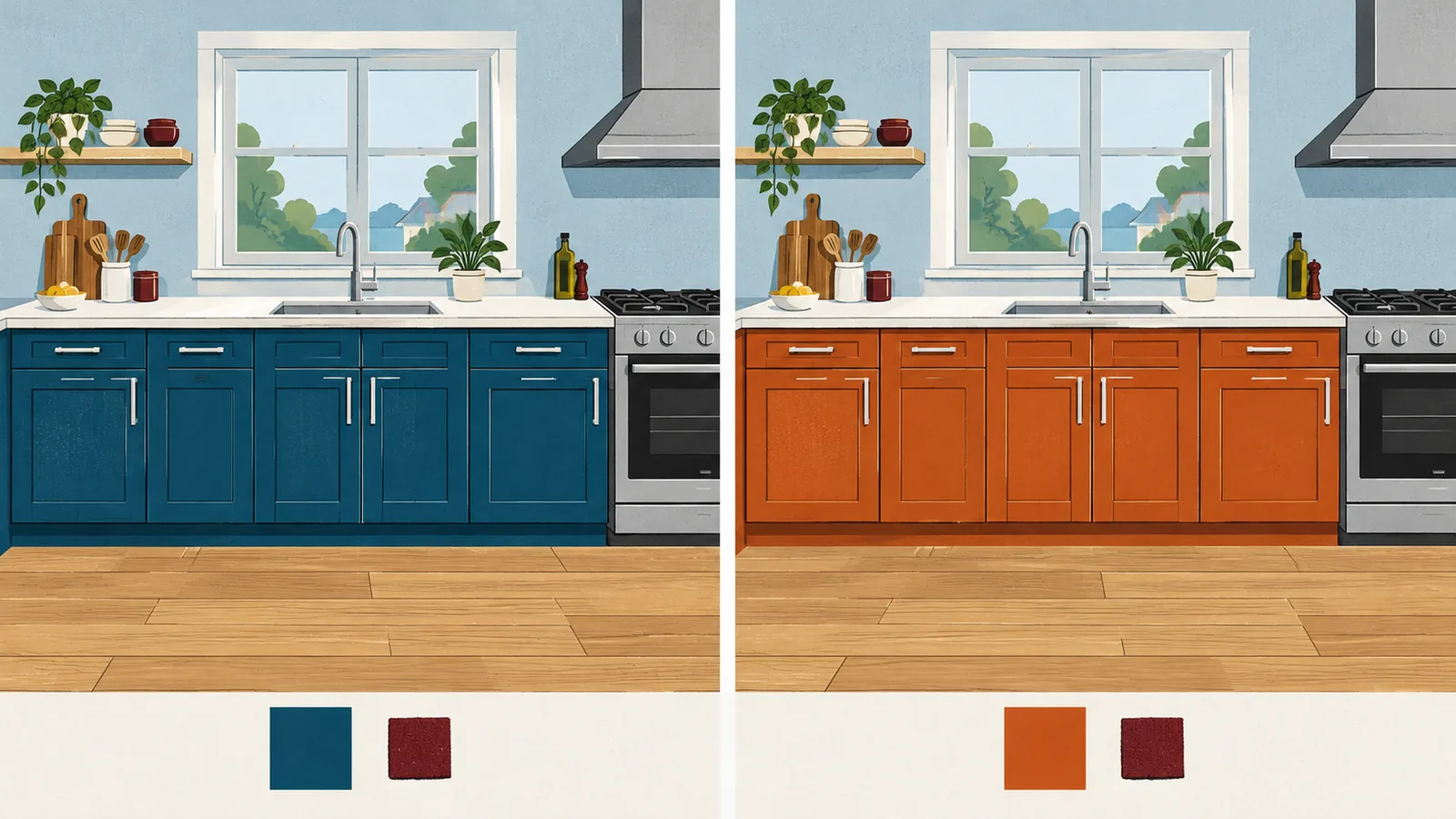
Which tool should you use for a kitchen photo?
Choose a photo workflow for finish exploration and a measured planner for cabinet selection. The shortlist below is based on current primary documentation. We have not run a same-photo comparison or established which tool preserves geometry most reliably.
| Route | Documented role | Important limit |
|---|---|---|
| Roomagine kitchen workflow | Kitchen photo restyling; the vendor says fronts, worktops and hardware can change while units/appliances remain | Vendor preservation claims still need checking against your input; cabinets are not matched to purchasable products. |
| Gemini image editing | Upload an image and request an edit, including a specific local change | General image editing does not create a measured cabinet schedule. |
| IKEA kitchen planner | Develop a US IKEA cabinet proposal for review | A different job from photo restyling; requires measured room information. |
Checked October 2026. Roomagine currently advertises a first design/free browser route; Gemini availability depends on account and region. Confirm the current allowance and terms before uploading or subscribing. An advertised free edit is not evidence of unlimited use.
Prepare one useful kitchen photo
Take an eye-level photo with the full cabinet run and its ends visible. Include the floor, window and appliance relationships where possible. Avoid a very wide-angle shot that makes the room seem larger. Keep a second photo of any corner hidden in the main view.
Write down the parts that must remain: sink position, appliance locations, window size, door swing, cabinet boxes and countertop outline. Distinguish a finish change from replacing the cabinet itself. A new door profile, for example, may need confirmation that compatible fronts exist for your boxes.
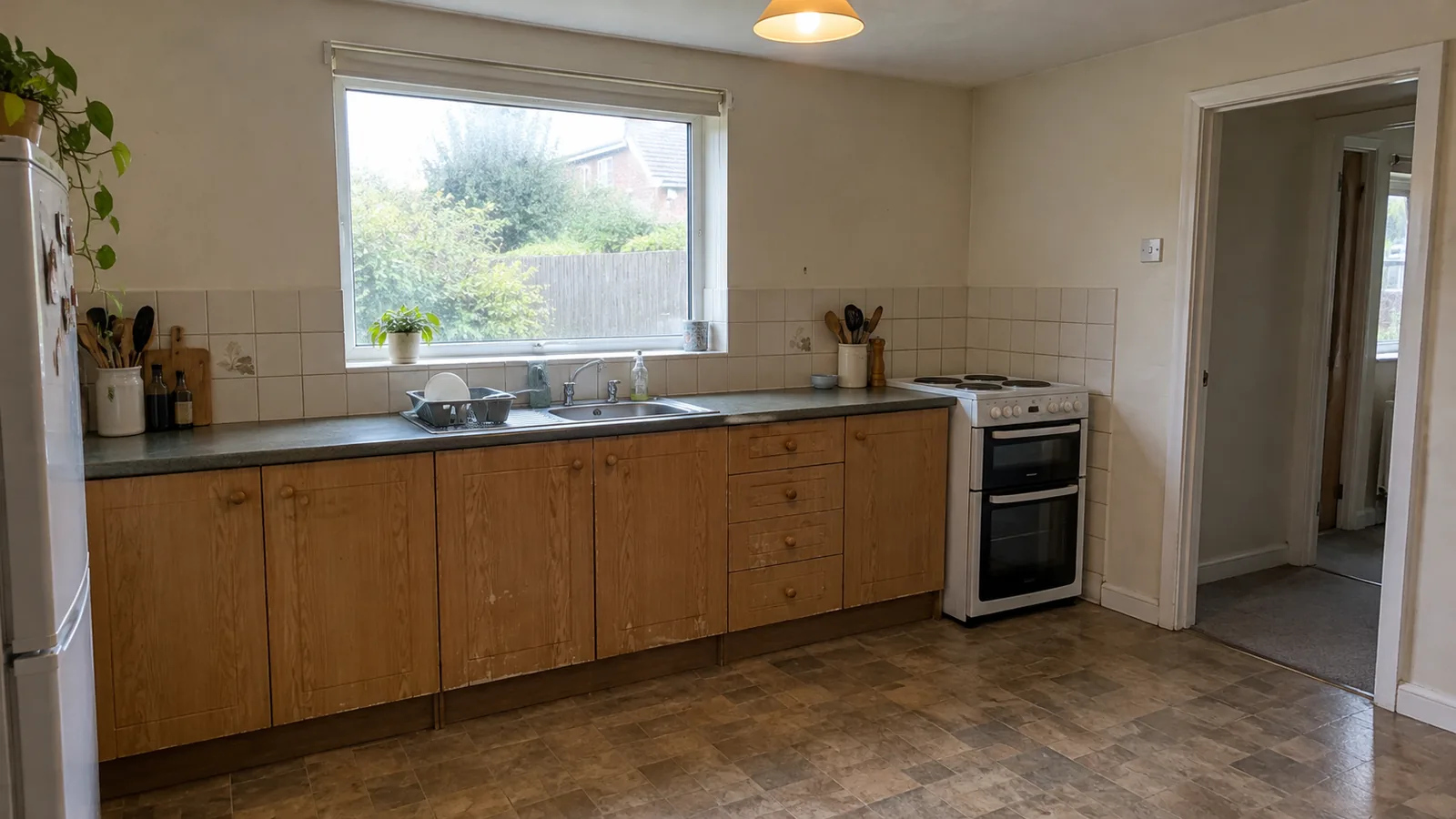
| Usually an appearance exploration | A separate measured or construction decision |
|---|---|
| Cabinet colour and hardware finish | Cabinet widths, new units or a changed run |
| Backsplash appearance | Removal, substrate and installation specification |
| Countertop colour or pattern | Templating, seams, cutouts and material availability |
| Wall finish | Moving services, openings or structural elements |
Remove personal documents or other private details from the photo and review the tool's upload terms. Keep an untouched original so every edit can be compared with the same baseline.
A kitchen prompt that limits the job
Use the prompt below for a first cabinet-colour experiment. Replace the requested colour with your shortlist, but do not change several layers at once. The prompt expresses a constraint; it does not guarantee the tool will obey it.
Edit this kitchen photo. Keep the exact room shape, camera view, window, doors, cabinet count, cabinet widths, sink, appliances, worktop outline and flooring unchanged. Change only the visible cabinet-front colour to a muted sage green. Preserve the existing door profile and hardware. Do not add an island, open shelving or new lighting. Return a finish concept, not a construction plan.
Once one edit passes the audit, create a separate countertop version or backsplash version. Save the original and each accepted concept with a plain description so you can reconstruct which change you preferred. For the general method, use the layout-preserving workflow.
Check the result before comparing style
Inspect the edges and count repeated objects before judging the mood. Put the original and output side by side. If geometry changes, reject that output as evidence for a finish-only project or request a narrower edit.
| Check | Reject or investigate when |
|---|---|
| Cabinet count and widths | A drawer stack disappears or the run gains a new unit. |
| Window and doors | An opening shifts, grows or becomes unobstructed without explanation. |
| Sink and appliances | Their position, size or type changes. |
| Worktop | An island appears, a corner vanishes or the depth changes. |
| Material | The pattern ignores seams or becomes a different finish on another surface. |
| Hardware and lighting | Handles are inconsistent or the brightness makes comparisons unfair. |
These are things to inspect, not a claim that every tool produces every error. A photo can conceal depth and service locations. Even an output that passes the visual audit cannot establish those missing dimensions.
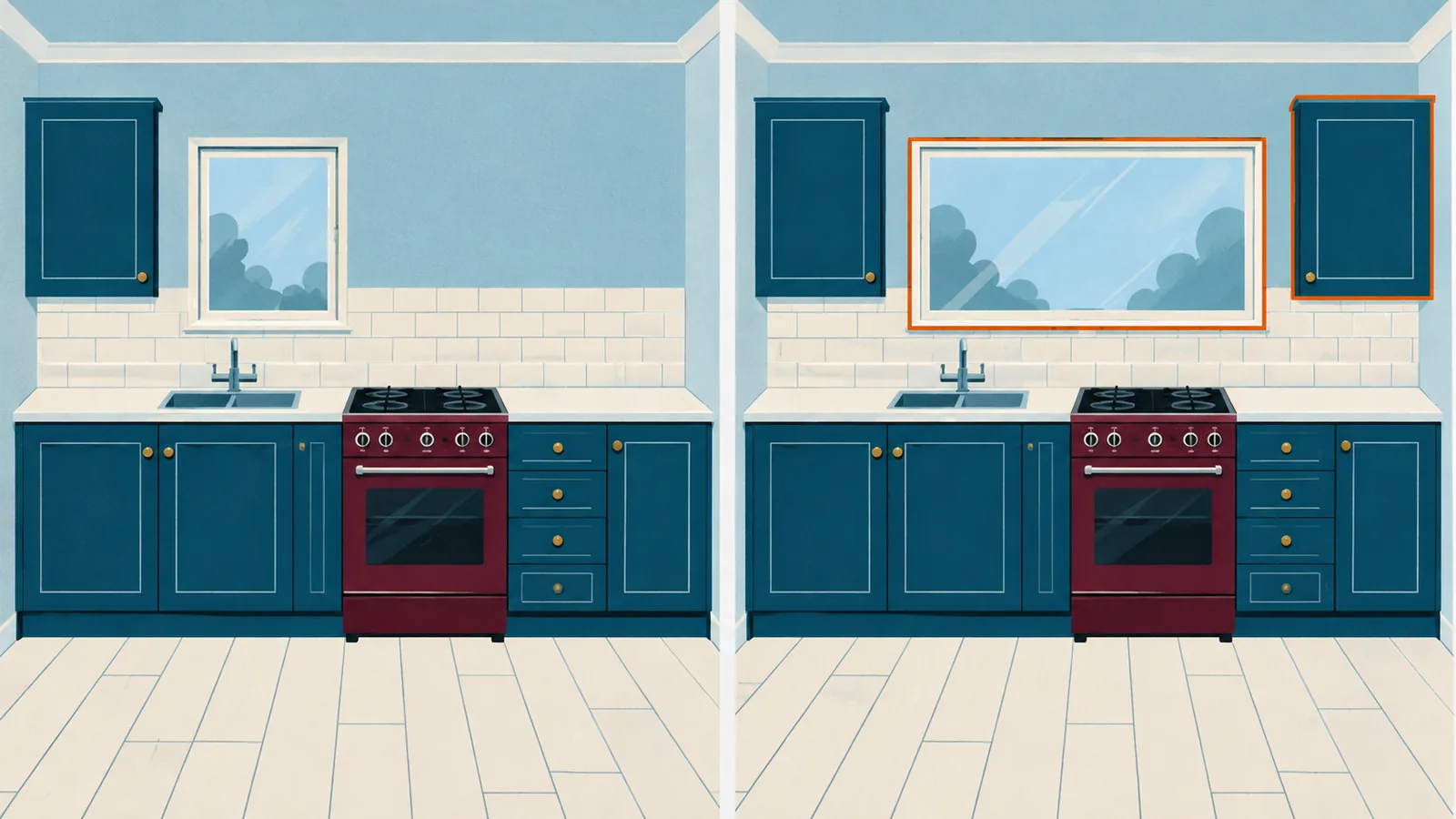
A worked example: keep the cabinets, compare finishes
This is an illustrative planning example, not an AI output we generated. Suppose your kitchen has eight visible cabinet fronts, a sink below one window and a freestanding range at the end of the run. You want a calmer colour scheme without changing the layout.
| Concept request | Accept only if | Next real-world check |
|---|---|---|
| Version A: sage fronts | All eight fronts and the same appliance/window geometry remain | Obtain compatible front or paint samples. |
| Version B: lighter countertop | Cabinets and top outline remain; only material appearance changes | Discuss actual material, seams and templating. |
| Version C: pale backsplash | No added shelves or altered sockets/windows | Check samples against the retained fronts and lighting. |
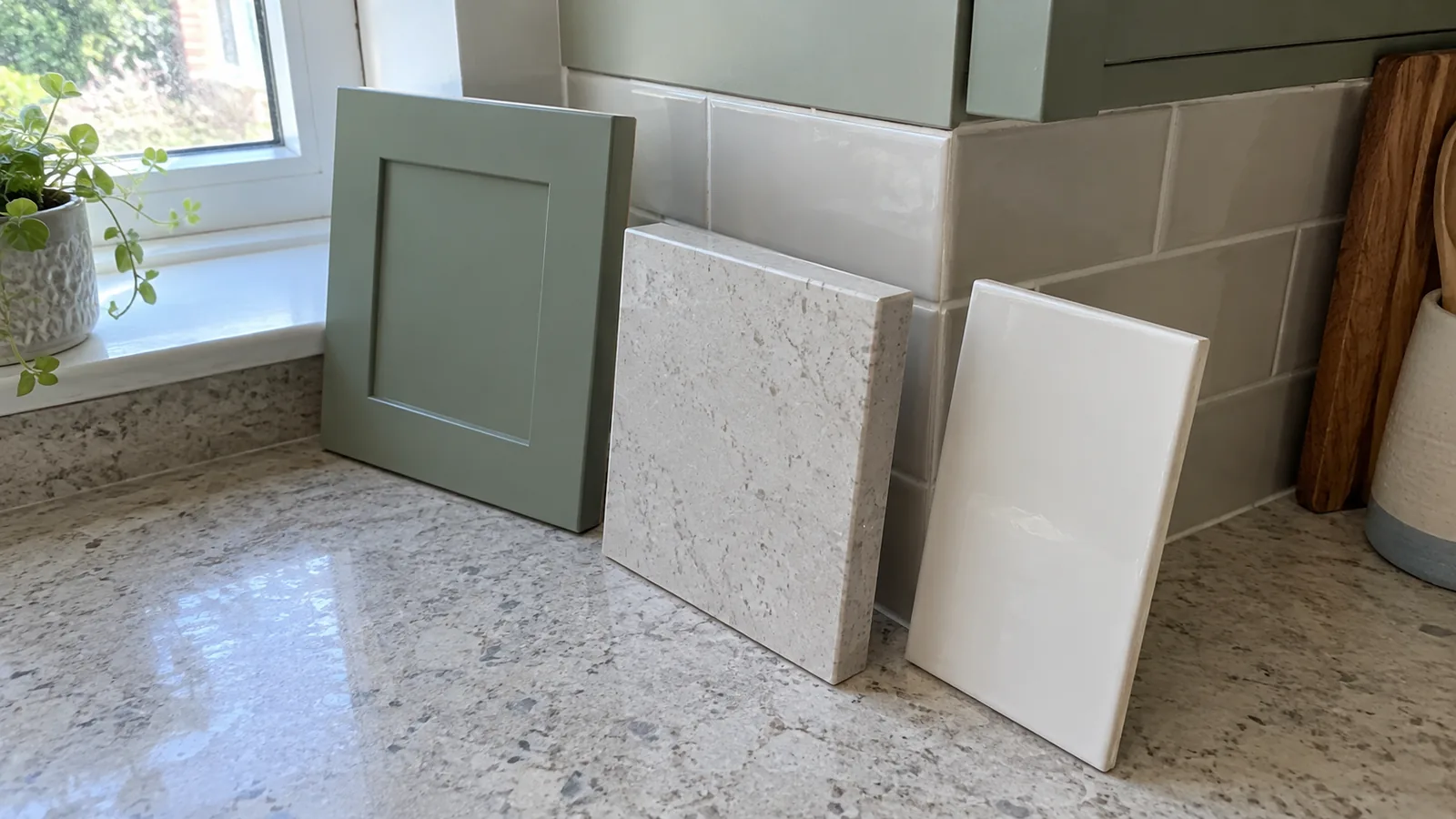
A useful result lets you say which direction you prefer. It does not let you name a manufacturer colour from pixels or calculate an accurate installed cost. Compare physical samples together in the kitchen before choosing.
Turn the image into a kitchen brief
Bring the original photo, the preferred concept and a written change list to the person supplying or carrying out the work. Clearly identify which objects must remain and which generated details are only visual references.
| Brief item | Write down |
|---|---|
| Retain | Cabinet boxes, appliance models, sink/window and flooring |
| Explore | Named physical samples for fronts, worktop and backsplash |
| Verify | Front compatibility, preparation, seams, clearances and installation |
| Quote | Separate finishes/materials, removal, fitting and any proposed service work |
If you decide to alter cabinet sizes or layout, move into a measured workflow such as the IKEA kitchen planner guide. Check local requirements and appliance installation instructions with the relevant professional. A photo edit cannot approve those changes. To turn the change list into a written brief and a budget you can compare quotes against, use the design brief template and the AI renovation budget workflow.
What to do next
- Photograph the existing kitchen and list fixed features.
- Choose one finish change and one documented tool route.
- Audit the result before saving a preferred concept.
- Compare real samples under the kitchen's light.
- Turn the preference into a measured, quoted change list.
Stop generating once you have a direction you can verify. Another attractive image is less useful than checking whether the fronts, material and installation you want are available. For broader photo-editing limits, read what AI room redesign can and cannot do.