
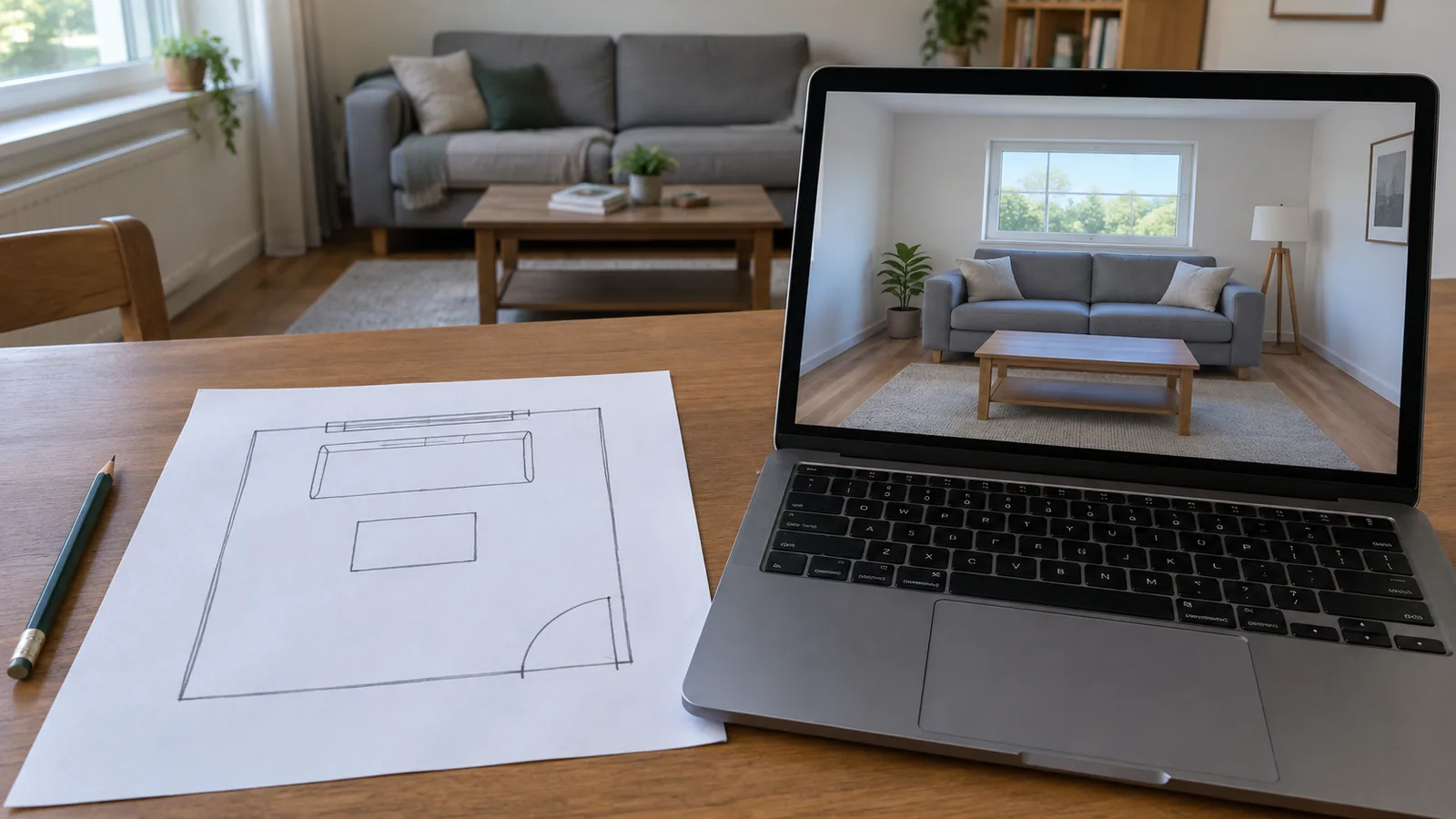
Is Sweet Home 3D worth using?
Start with the free desktop route if you need a measured plan and custom furniture dimensions without committing to a paid store edition. Consider a paid edition for its documented bundle or update arrangements, rather than assuming the free version cannot draw a useful room.
A good candidate if
- You have room and furniture measurements.
- You want to inspect a 2D plan alongside a 3D view.
- You can spend time building and checking the plan.
Consider a different route if
- You want an automatic photo restyle.
- You need a specified professional construction deliverable.
- You need a feature that your chosen version excludes.
This is an assessment of documented capabilities, not a speed, usability or image-quality ranking. An attractive render is not evidence that your measurements were correct.
Is Sweet Home 3D really free?
Yes, there is a free desktop download. The official download page also lists paid Microsoft Store and Mac App Store versions with larger bundled furniture libraries and automatic updating, plus paid iOS and Android apps. The included libraries differ even between the free Windows and macOS downloads.
| Route | Cost/bundle distinction | What to verify |
|---|---|---|
| Free desktop download | Free application; smaller included catalog | Operating system and installer selected |
| Paid desktop store version | Paid bundle with more furniture/textures and automatic updates | Current store price and contents |
| Online | Browser workflow with its own limitations | Account/save arrangements and required features |
| iOS / Android | Paid mobile apps | Current store price and platform-specific features |
Checked October 2026. We have not quoted a store price because it can depend on market and store. Avoid interpreting a catalog count from the paid edition as the contents of a free installer. Start from the official page rather than a download advertisement.
Desktop vs online: the features that change the choice
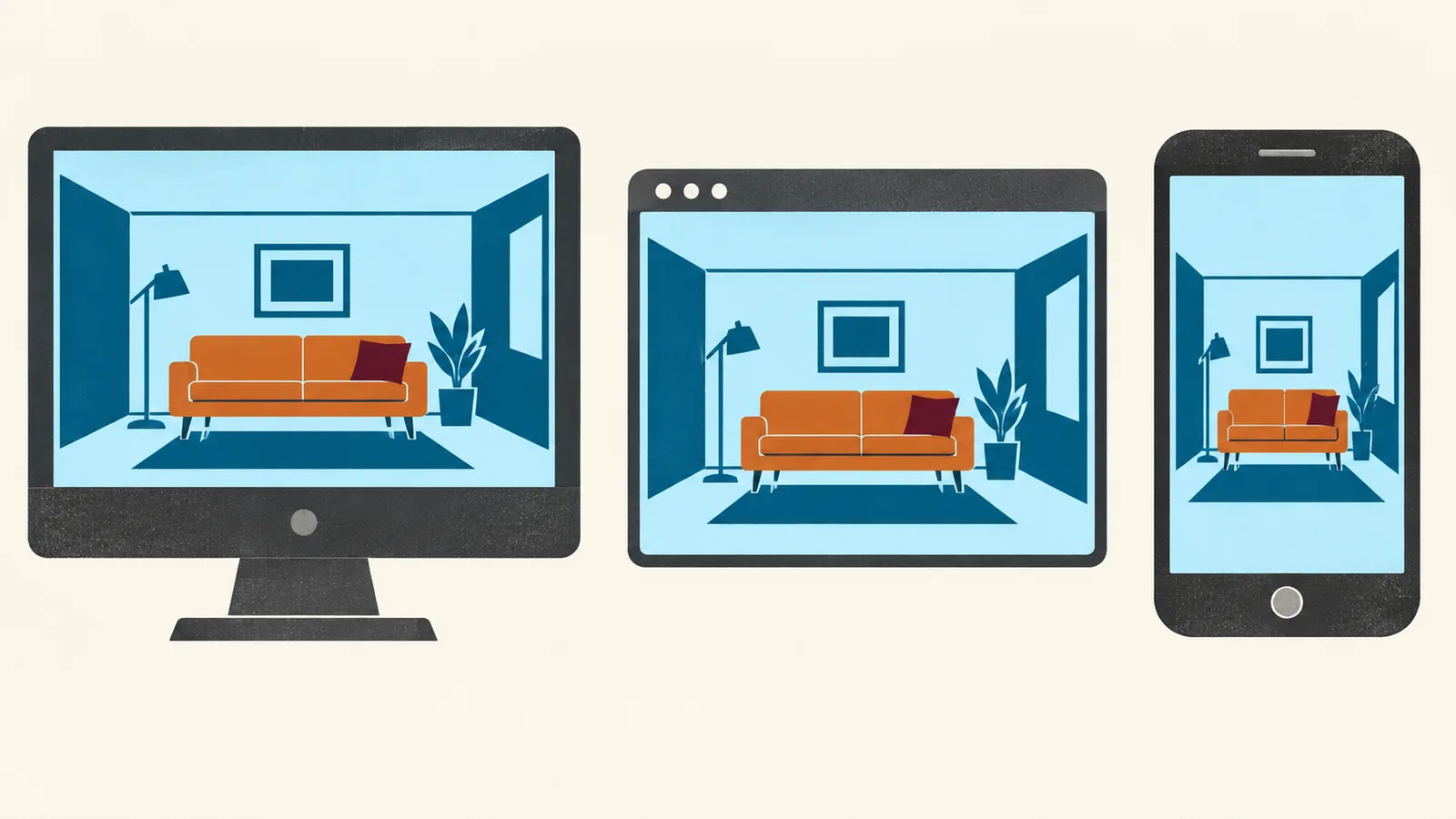
The official user guide describes the capabilities and exceptions. Online supports drawing and furnishing a home, but excludes model import and photo/video creation. OBJ scene export is unavailable in online and mobile versions. Desktop menu instructions should not be presented as mobile instructions.
| Task | Desktop | Online / mobile distinction |
|---|---|---|
| Set furniture dimensions | Documented furniture-editing workflow | Check the interface on the chosen version |
| Import a custom 3D model | Documented on desktop | Online excludes it; verify mobile separately |
| Export the scene as OBJ | Documented on desktop | Not available online or mobile |
| Add SH3F libraries / plug-ins | Documented desktop features | Not available online or mobile |
| Save a project | Separate from exporting a 3D scene | Check the chosen version's save and transfer options |
Choose from the file you need at the end. A native project preserves an editable home; a rendered image illustrates it; an OBJ export is intended for further 3D work. They are not interchangeable deliverables.
A measured-room workflow to follow
The following is a proposed exercise based on the documented tools, not a report of a test we completed. Use a simple room before building a whole house so you can spot unit and dimension mistakes early.
- Set units. Use inches for your initial US measurement list, keeping any conversions consistent.
- Draw the shell. Enter the measured walls and position doors/windows. Include obstructions that affect fit.
- Add one anchor item. Choose a generic model if the exact product is missing and set its overall width, depth and height from the product specification.
- Review the plan. Check occupied routes and door swings in 2D before relying on the 3D view.
- Save a baseline. Keep a separate copy before moving furniture into a second arrangement.
- Choose the output. Confirm that the selected version can produce the file or image you need.
A furniture model is only as useful as its dimensions
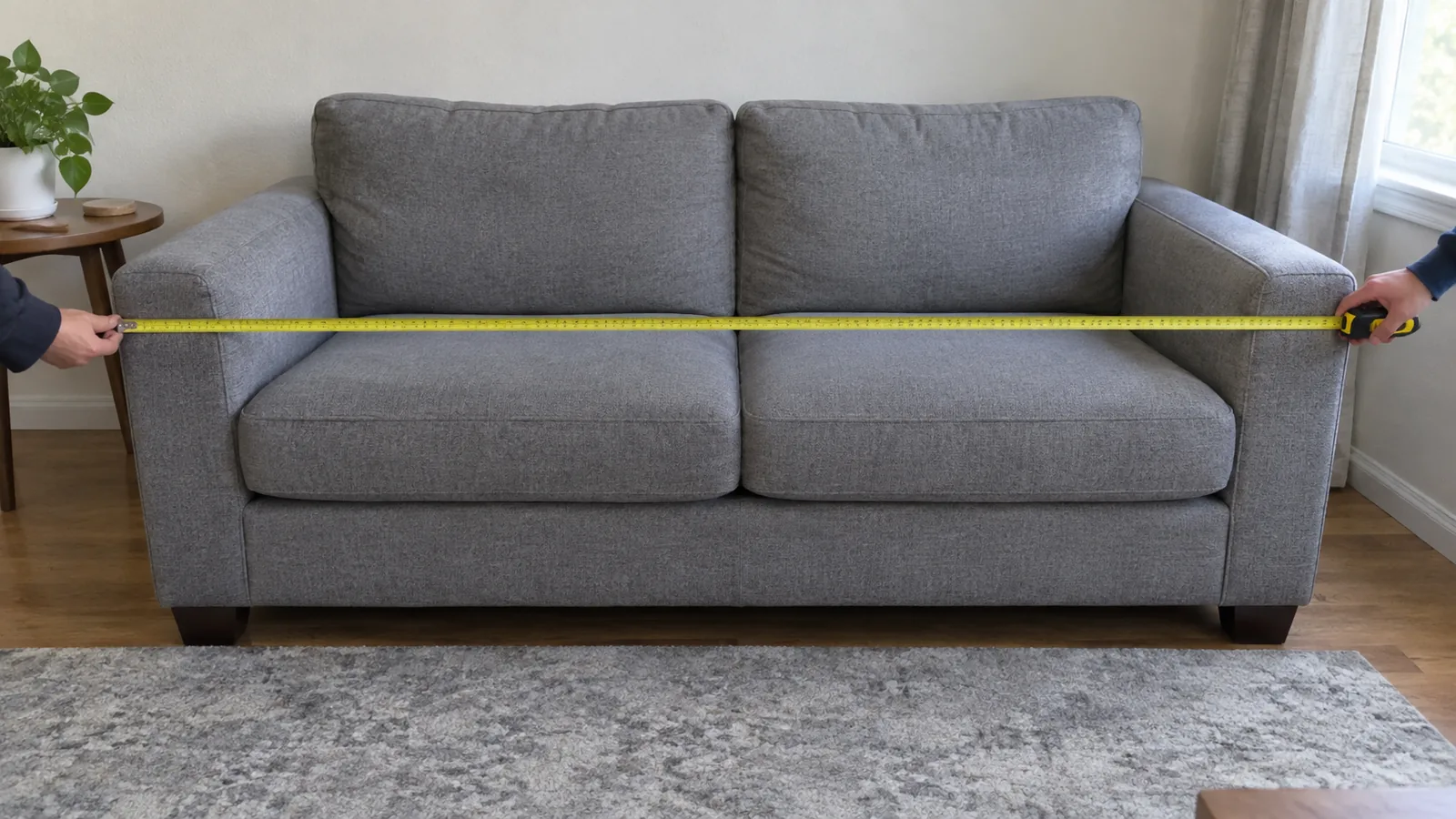
Suppose you plan a 120 x 144 in (305 x 366 cm) room with an 84 x 36 in (213 x 91 cm) sofa. Those are illustrative inputs, not a room we tested. If the model is left at 72 in (183 cm) wide, the plan falsely gains 12 in (30 cm) of space. A visually similar model at the wrong size can mislead more than a plain correctly sized rectangle.
| Dimension or detail | Verification step |
|---|---|
| Overall width/depth | Use the product's outside measurements, not just seat dimensions. |
| Height | Include backs and arms where relevant. |
| Door swing | Record the actual opening and hinges. |
| Recliner or extension | Model its operating envelope separately. |
| Walkway | Measure the gap, not how spacious the perspective looks. |
Use the clearance guide to establish initial gaps, then check your own movement needs. A scaled model cannot determine cushion comfort or whether an object will pass through the delivery route unless you model and assess that separately.
Custom furniture imports and export checks
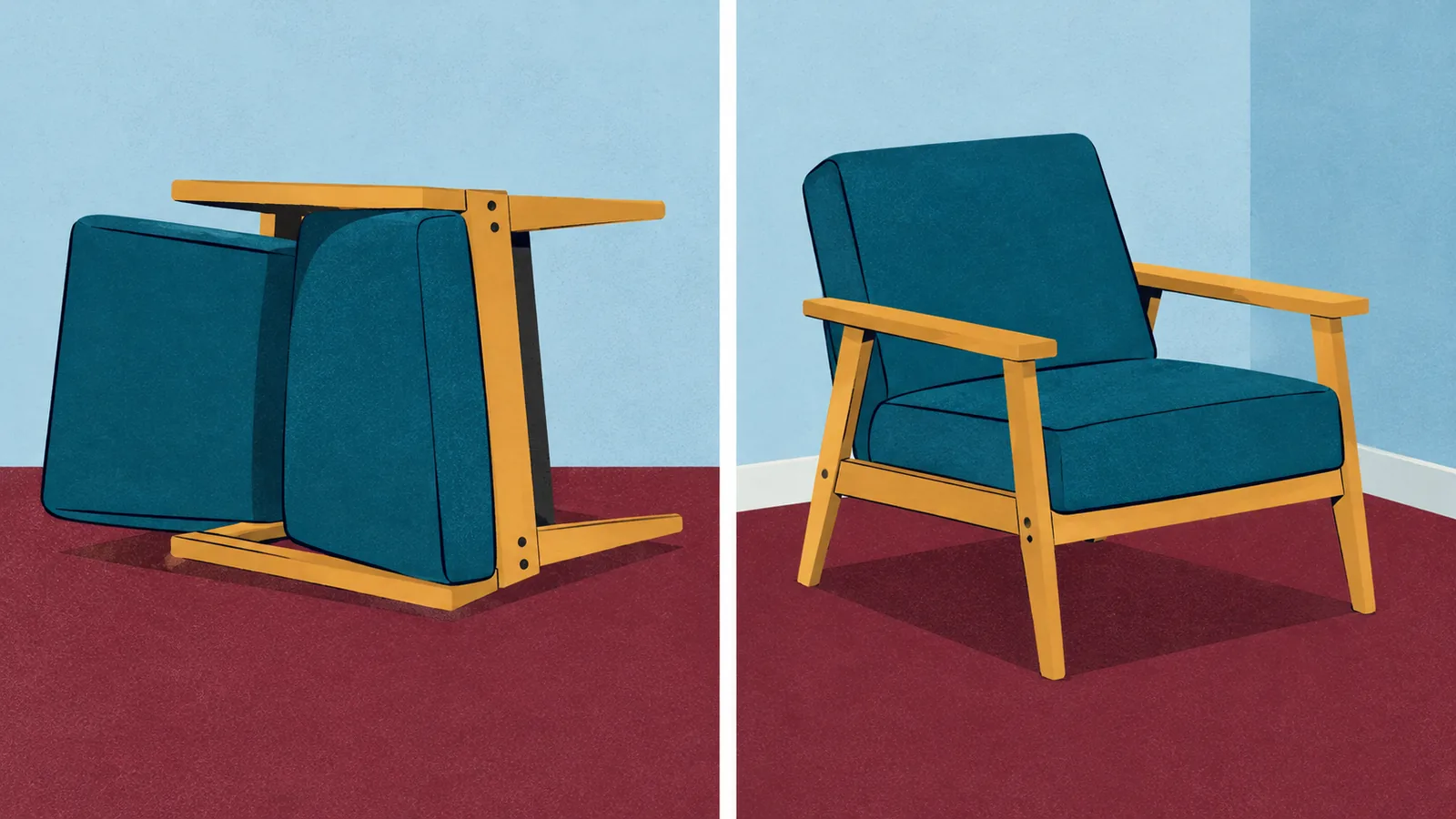
For a desktop custom-model workflow, check the formats and import steps in the official guide before downloading an asset. Inspect its orientation and dimensions after import. Keep the source and usage rights for the model; a free download is not necessarily permission to redistribute it.
For other 3D software, test one small scene export before investing time in a complex project. Confirm the receiving application reads the intended objects and materials. An export option being documented does not prove every imported asset will transfer perfectly.
| Before import | Before export |
|---|---|
| Verify file format and model rights | Choose native project, image or 3D scene deliberately |
| Check orientation and outside dimensions | Check that the selected version supports the output |
| Use a simple proxy if geometry is unnecessary | Open the exported file in its intended destination |
If you need a different balance of browser convenience and deliverables, compare the floor-plan maker roundup. It is a shortlist; this review focuses on Sweet Home 3D's version choice.
Which version should you start with?
- Free desktop: start here for the measured-room exercise and documented desktop import/export functions.
- Paid desktop: consider it if the current catalog bundle and update arrangement are worth the store price to you.
- Online: consider it for browser-based planning if its exclusions do not affect your output.
- Mobile: check the app listing and feature requirements rather than assuming desktop parity.
Write down the three tasks you need to complete and the final file you need. If a version cannot do one of those tasks, a larger furniture library will not resolve that mismatch.